
Investigating Suspicious Microsoft 365 Activity with Wazuh



.webp)


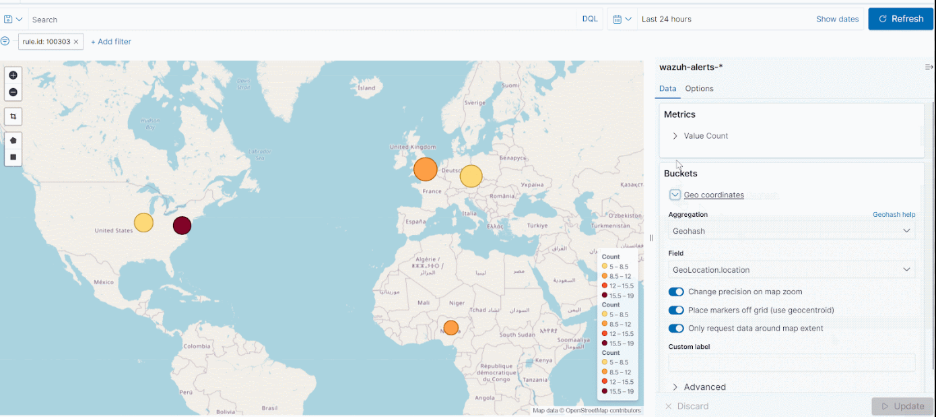
This was a regular Tuesday morning. The alert queue looked normal, with a few phishing alerts and some endpoint alerts caused by a developer running scripts without informing the team. Then something caught my attention. The login had come from Nigeria, while the user was expected to be in the office in Melbourne.
This article looks at what can happen after an attacker gains access to a Microsoft 365 account, the signs analysts should look for, and how Wazuh can help investigate suspicious activity without making things unnecessarily complicated.
This is Part 1 of a two-part series. We'll start by looking at common attack patterns and how to investigate them. In Part 2, we'll use what we've learned to build custom Wazuh detection rules in XML.
Why “It Logged in Fine” Doesn’t Mean “It’s Fine”
Getting into a Microsoft 365 account doesn't always mean cracking a password or bypassing MFA. Attackers can also take advantage of the way users authenticate and the access they grant to applications.
Here are three common scenarios worth understanding:
- Phishing and session-token theft: Attackers can use fake login pages to capture credentials and session tokens. If they obtain a valid session token, they may be able to access the account without entering the password or completing MFA again.
- MFA fatigue: Attackers repeatedly send MFA approval requests, hoping the user will eventually approve one just to stop the notifications.
- Legacy authentication: Older authentication protocols may not support modern MFA protections in the same way as newer sign-in methods. If these protocols are still enabled, they can create additional security risks.
In these situations, a simple alert for repeated failed passwords may not be enough. The login might succeed, so analysts also need to look at where the login came from and what happened afterward.
It’s Not Just the Login

Here’s What Else to Watch
A suspicious login is only the starting point. Once an attacker gains access to a mailbox, they may try to maintain access, hide their activity, or access sensitive information.
These actions can leave traces in Microsoft 365 audit logs. If the relevant events are collected and available in Wazuh, analysts can use them to investigate what happened after the login.
1. Impossible travel logins
When someone logs in from two different countries within a very short time, it immediately raises a red flag for the SOC team. It could be a sign of a compromised account, especially when the time between the logins is too short for the person to have travelled between those locations.
2. Sign-ins from legacy authentication
Even when there is no active attack, legacy authentication should be reviewed. Older protocols may not support modern MFA protections, which can increase the risk of unauthorized access.
3. New mailbox rules that forward or hide mail
One thing to check after a suspicious login is whether any new inbox rules were created. An attacker might set up a rule to forward emails to an external address or move selected messages out of sight. This can help them monitor conversations while making their activity less obvious to the user.
4. Suspicious OAuth app consent grants
Attackers don't always need to keep logging in as the user. They may trick someone into granting permissions to a malicious application that can access mailbox data. Depending on the permissions granted, this access may continue even after the user's password is changed, so reviewing and revoking suspicious application permissions is also important.
5. New MFA methods added to an account
After gaining access to an account, an attacker may try to add their own phone number or authenticator app as an MFA method. This could help them maintain access even if the original user changes their password, so unexpected changes to MFA settings should be investigated.
6. Sudden mailbox permission or delegate changes
Attackers sometimes grant themselves or another user “Send As” or “Full Access” permissions on a mailbox. This allows them to send emails from that mailbox or read its contents without needing to sign in as the mailbox owner each time.
7. Password spray attempts across many accounts
Instead of trying to break one password by making guesses, hackers usually apply one or two commonly used passwords to hundreds of different user names at the same time. This way is more covert, yet it can be seen if you are analyzing the failures of logins in aggregate for the entire tenant.
How I Actually Investigated the Nigeria Login
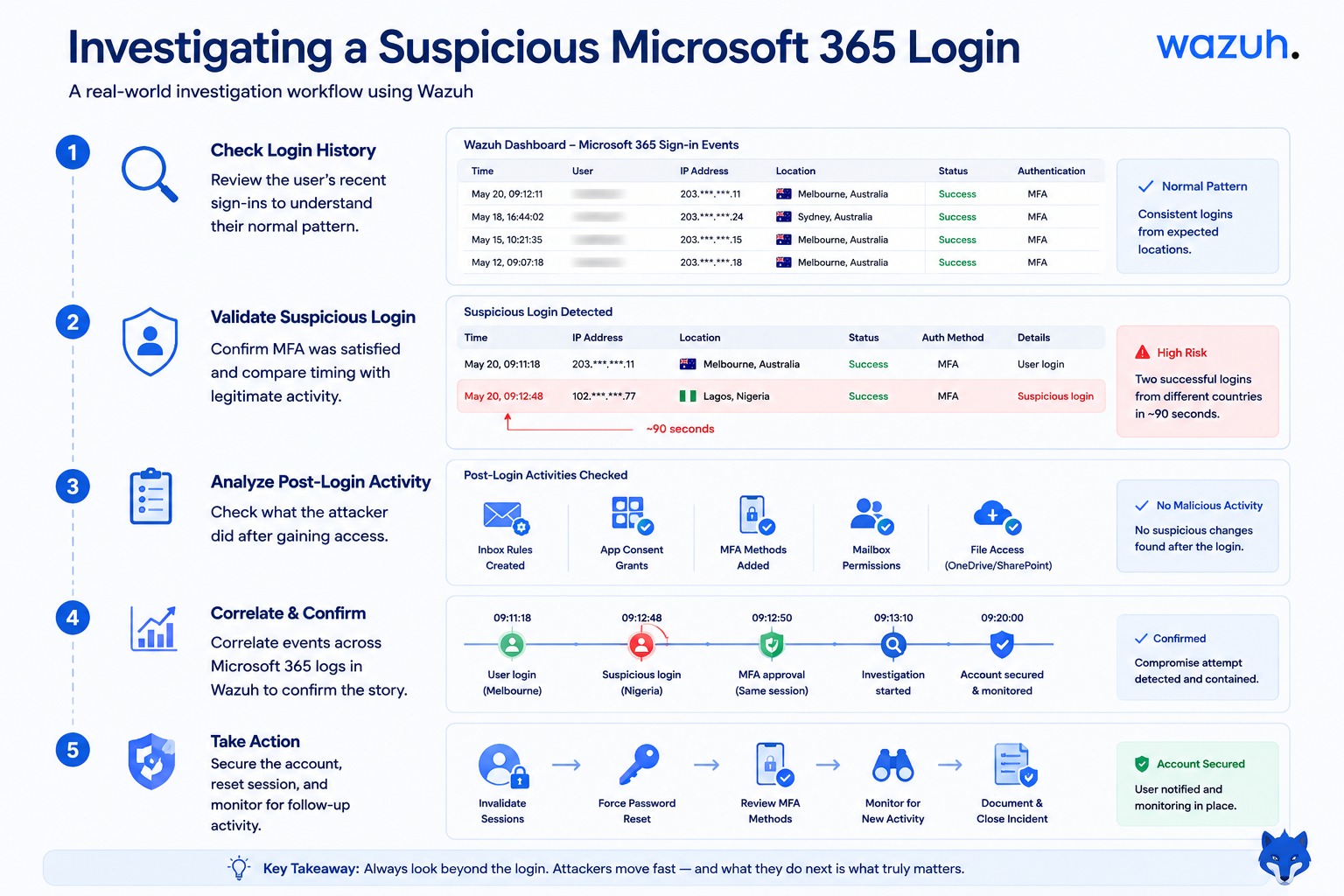
Let me walk you through how I investigated that suspicious login using Wazuh.
Historically, the user's logins came from Melbourne and occasionally Sydney. The login from Nigeria did not match that pattern.
Then I determined if MFA had been validated and, more importantly, how. It had been validated, but this had been done in less than ninety seconds. Two logins from different continents within ninety seconds immediately raised a red flag. The timing and MFA details made session-token theft a possibility, so I checked the account activity that followed.
Next, I checked what happened after the suspicious login. Were any new inbox rules created? Had an application been granted new permissions? Were any new MFA methods added to the account? Fortunately, we caught this early enough to prevent anything like that from happening. However, if I had simply ignored the issue after the login and closed the ticket, I would never have known what the attacker may have installed.
Digging Deeper: Using Wazuh’s Search Filters and Default Rules
Before building custom detection rules in Part 2, let's look at something analysts can do right away: use Wazuh's search filters to investigate suspicious Microsoft 365 activity.
The data.office365.Operation field is a useful starting point when investigating Microsoft 365 activity. It tells you what action was recorded, such as a login, file download, or mailbox access, and helps you narrow down the events you need to investigate.
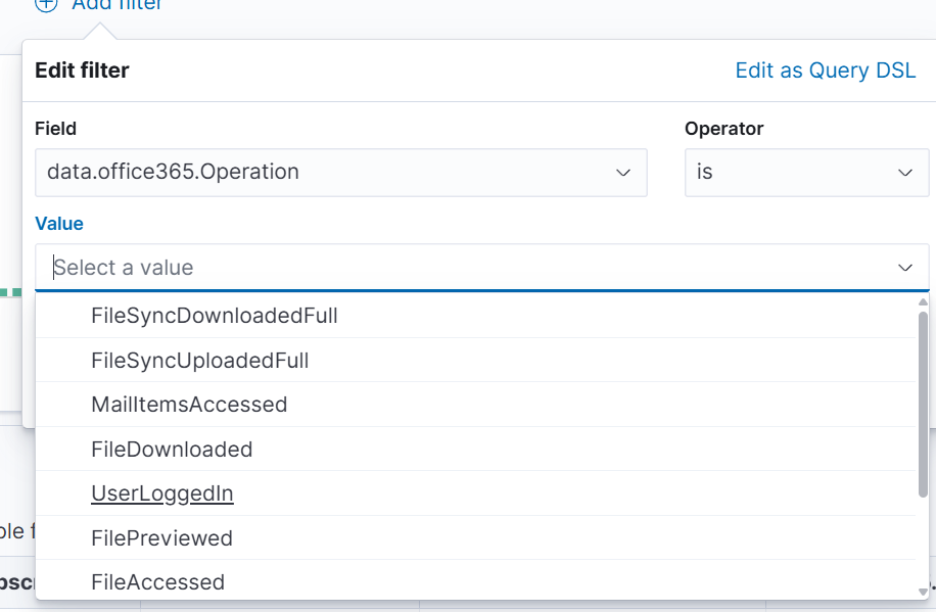
You can use the same filter to investigate different types of suspicious Microsoft 365 activity. Change the operation value to MailItemsAccessed to look for mailbox access events, or review FileDownloaded and FileAccessed events to investigate activity involving OneDrive or SharePoint. You can also look for inbox rule creation events to identify potentially suspicious forwarding rules.
Wazuh includes default rules for Microsoft 365 activity that can help analysts identify suspicious events. Reviewing these rules is a useful starting point before building custom detections. You can review 0755-office365_rules.xml to understand the default Microsoft 365 rules included in this Wazuh setup. The file header identifies the rule ID range as 91531–91650. In Threat Hunting, you can filter by rule.id and review the resulting alerts in chronological order.

What Actually Confirmed This Was a Real Incident
To be fair, though, an unusual IP address alone doesn’t necessarily mean the account has been compromised. What made this more concerning was the combination of several factors, rather than just an unusual IP address:
- The login locations didn’t make sense given where the user had logged in from previously.
- The time between the two logins was too short for the user to have realistically travelled between those locations.
- MFA was marked as satisfied in both sessions, which raised concerns that an existing authenticated session might have been reused rather than two separate, legitimate logins.
- There was nothing in the calendar, support tickets, or confirmation from the customer to suggest that the travel was expected or legitimate.
Any one of these signs alone could be suspicious. Together, however, they raised serious concerns about a potential account compromise. We treated it as a real incident, forced a password reset, and revoked the active session tokens.
The Real Problem: Everything Was Done Manually
Here’s the part that matters most for improving a SOC, not just closing one ticket. In this investigation, I had to check the login history, compare timestamps, and spot the ninety-second gap. This is where detection rules can help.
Wazuh shouldn’t just be a place where analysts go to check alerts. We should configure it to recognize suspicious patterns automatically and alert us when something doesn’t look right. That way, we don’t have to depend on an analyst spotting an unusual login location while going through hundreds of alerts.
This is exactly what we’ll cover in Part 2. We’ll take the Microsoft 365 login activities we discussed and create practical Wazuh detection rules in XML to help identify suspicious activity automatically.
Because a successful Microsoft 365 login doesn’t always mean the right person is accessing the account. The logs can tell us that someone logged in, but understanding whether that activity is legitimate requires looking at the bigger picture.


Keep Reading
.webp)




We break browsers before someone else does
This is the default text value

